New Tool Allows Schools to Evaluate All Staff Positions Through NEE
Looking to streamline evaluations for classified staff, district leaders, and stipend positions? The NEE Professional Responsibility evaluation is now available in the NEE Data Tool to meet your needs!
Overview of the NEE Professional Responsibility Evaluation
The NEE Professional Responsibility evaluation organizer includes 8 themes:
- Job Accomplishment
- Conduct, Professionalism, and Leadership
- Communication
- Stakeholder Focus
- Inclusion, Diversity, and Equity
- Judgement
- Time Management
- Professional Growth
Each theme includes a list of look-fors to provide guidance for documentation and scoring. The district or evaluator should determine which themes will be included in the evaluation process for each position. Themes can be hidden from the organizer if they are not applicable to a position.
How to Set Up the Professional Responsibility Evaluation
All districts with access to NEE now have access to the Professional Responsibility tool within the NEE Data Tool online platform. After logging in, click Professional Responsibility on the left-side menu.
For the 2025-2026 school year, NEE will need to set up special buildings for your district to ensure the Professional Responsibility tool works correctly. Please contact the NEE Help Desk at nee@missouri.edu or 844-793-4357 to assist with your initial setup.
After your district’s special buildings are set up, follow the NEE Data Tool Import People process to add staff to the NEE Data Tool so they can log in. Staff members should be assigned the Individual access level.
Recommended Workflow
- The district or evaluator will select the themes that will be used for evaluating each position and communicates that to each staff member.
- The staff member creates and completes the organizer, filling in the comments boxes for the themes assigned by the evaluator. Comments for each theme will document progress, strengths, and opportunities related to that theme. The staff member should save each comment box as they work.
- Once all assigned themes are complete, the staff member will submit the organizer for scoring.
- The evaluator scores the organizer.
How to Create and Complete the NEE Professional Responsibilities Evaluation Organizer
Staff members will:
- Log in to the NEE Data Tool.
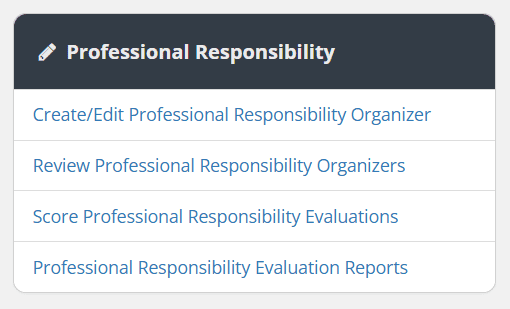
- Click Professional Responsibility on the left-side menu.
- On the next screen, click Create/Edit Professional Responsibility Organizers.
- On the next screen, click Create New Organizer.
- The Professional Responsibility Evaluation Organizer screen will appear. (To view a past organizer, click Select School Year. From the dropdown menu, select the previous school year.)
- Complete the comment box for each assigned theme of the organizer. Use the look-fors for each theme to comment on progress, strengths, and opportunities related to each theme. Click Save when done with each theme. (Click the Show / Hide button to minimize themes that are not being used for a particular evaluation.)
- When all fields are complete and ready for submission to the evaluator, click Submit.
How to Score the Professional Responsibility Evaluation Organizer
Evaluators will:
- Log in to the NEE Data Tool.
- Click Professional Responsibility on the left-side menu.
- On the next screen, click Score Professional Responsibility Evaluations.
- The Professional Responsibility Evaluations scoring screen will appear.
- Click New in the upper right corner.
- The “Select a person” box will appear. Find the staff member in the staff listing, click their name, and then click Select Person.
- The Professional Responsibility Evaluation screen will appear. For each theme, you will see what the staff member entered for their comments. (Click the Show / Hide button to minimize themes that are not being used for a particular evaluation.)
- To score, use the dropdown box on each theme to select one of the following:
- Not observed
- 1 – Does not meet expectations
- 2 – Needs some improvement
- 3 – Meets expectations
- 4 – Exceeds expectations
- Add any comments about each theme in the Evaluator Comments box.
- Click Save for each theme.
- Enter overall comments in the General Comments section at the bottom of the organizer.
- When complete, click one of the two buttons at the bottom: Complete finishes the scoring and makes it available for review by the staff member. Complete Later allows you to save your progress and finish at a later time.
- The Professional Responsibility Evaluation screen will appear. There are two tabs on the screen – Incomplete and Recent. Scorings where you selected Complete Later will appear under the Incomplete tab. Scorings where you have selected Complete will appear under the Recent tab.
- To finish an incomplete scoring, click Resume next to the scoring you wish to resume and repeat steps 8 to 12.
How to View Professional Responsibility Evaluation Reports
- Log in to the NEE Data Tool.
- Click Professional Responsibility on the left-side menu.
- On the next screen, click Professional Responsibility Evaluation Reports.
- The Professional Responsibility Evaluation Report screen will appear. Find the staff member in the listing, and click the staff member’s name.
- The staff member’s Professional Responsibility Evaluation will appear. The report is also available in PDF form if a printed copy is needed.
For easier tracking of the Professional Responsibility evaluation process, NEE is currently developing a Status Report to track progress. It should be available before December 2025.
Additional Support
A step-by-step how-to document and a Microsoft Word version of the Professional Responsibility organizer are both available on the NEE Data Tool Help and Resources menu. After logging into the NEE Data Tool, click Help and Resources on the left-side menu and search “Professional Responsibility.”
Anytime you have additional questions, contact the NEE Help Desk at nee@missouri.edu or 844-793-4357. We welcome your questions, and we are here to help.
Introducing NEE’s Professional Responsibility Evaluation
The Network for Educator Effectiveness (NEE) is a simple yet powerful comprehensive system for educator evaluation that helps educators grow, students learn, and schools improve. Developed by preK-12 practitioners and experts at the University of Missouri, NEE brings together classroom observation, student
feedback, teacher curriculum planning, and professional development as measures of effectiveness in a secure online portal designed to promote educator growth and development.